
How to Socially Network – Remotely
Video conferencing is something that we have become used to using in the business world, however it can be deployed to great effect for community and social networking.
There are several apps available now being used by community groups to widen participation and engagement; and most importantly reduce isolation.
This article is going to look at Zoom which is one of the most accessible apps currently available.
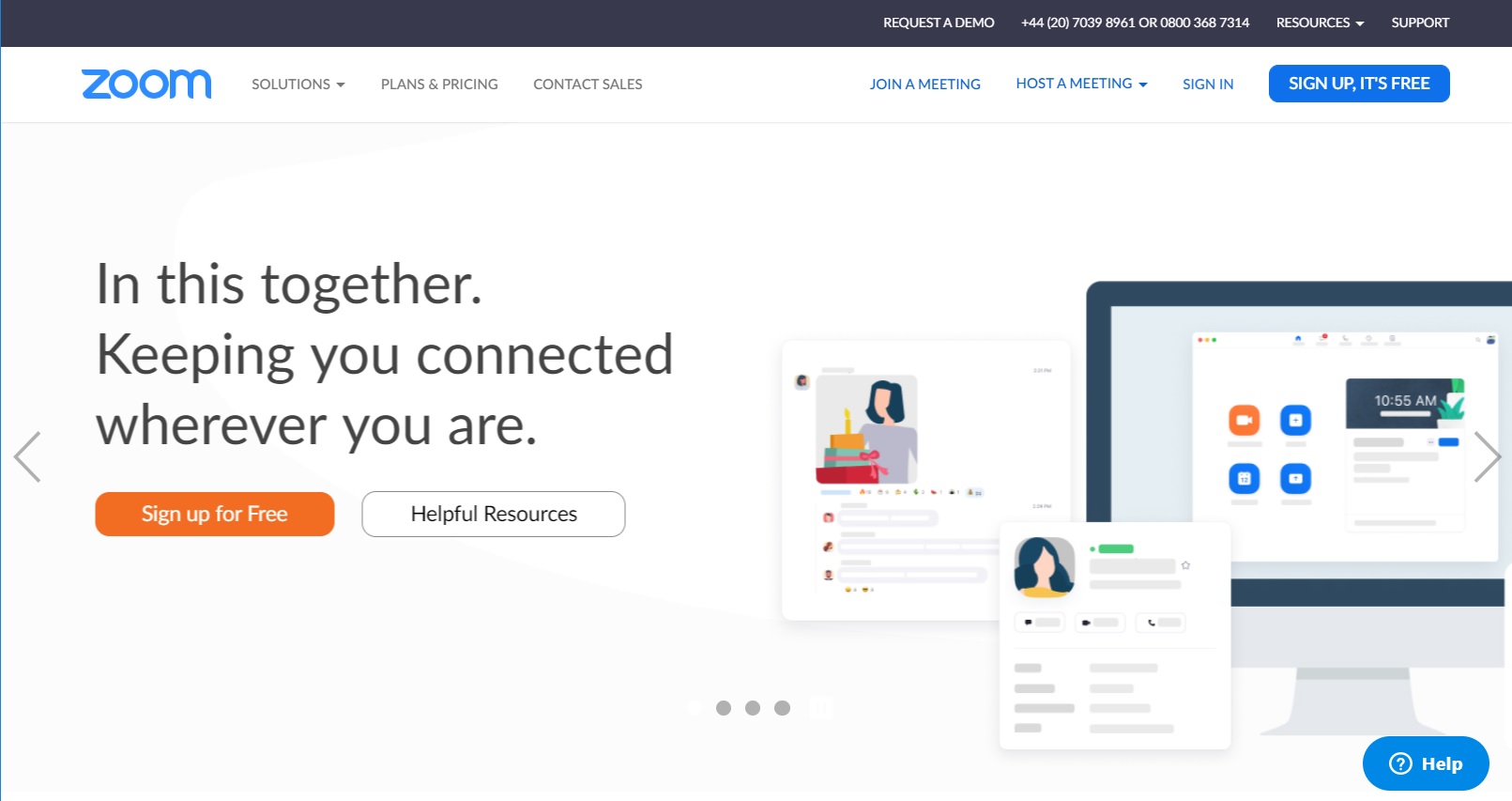
Zoom is a video/audio conferencing and screen-sharing tool. As part of its free package you can host 40-minutes meetings with up to 100 participants and it is compatible with most smart devices.
There are two main ways to use Zoom to interact with a group – as a meeting or as a webinar.
If your activity requires interaction between the participants, then a meeting is the better option.
If you just want participants to listen, then opt for a webinar – however, this feature is only available as part of the premium package.
How to Use Zoom
Go to zoom.us
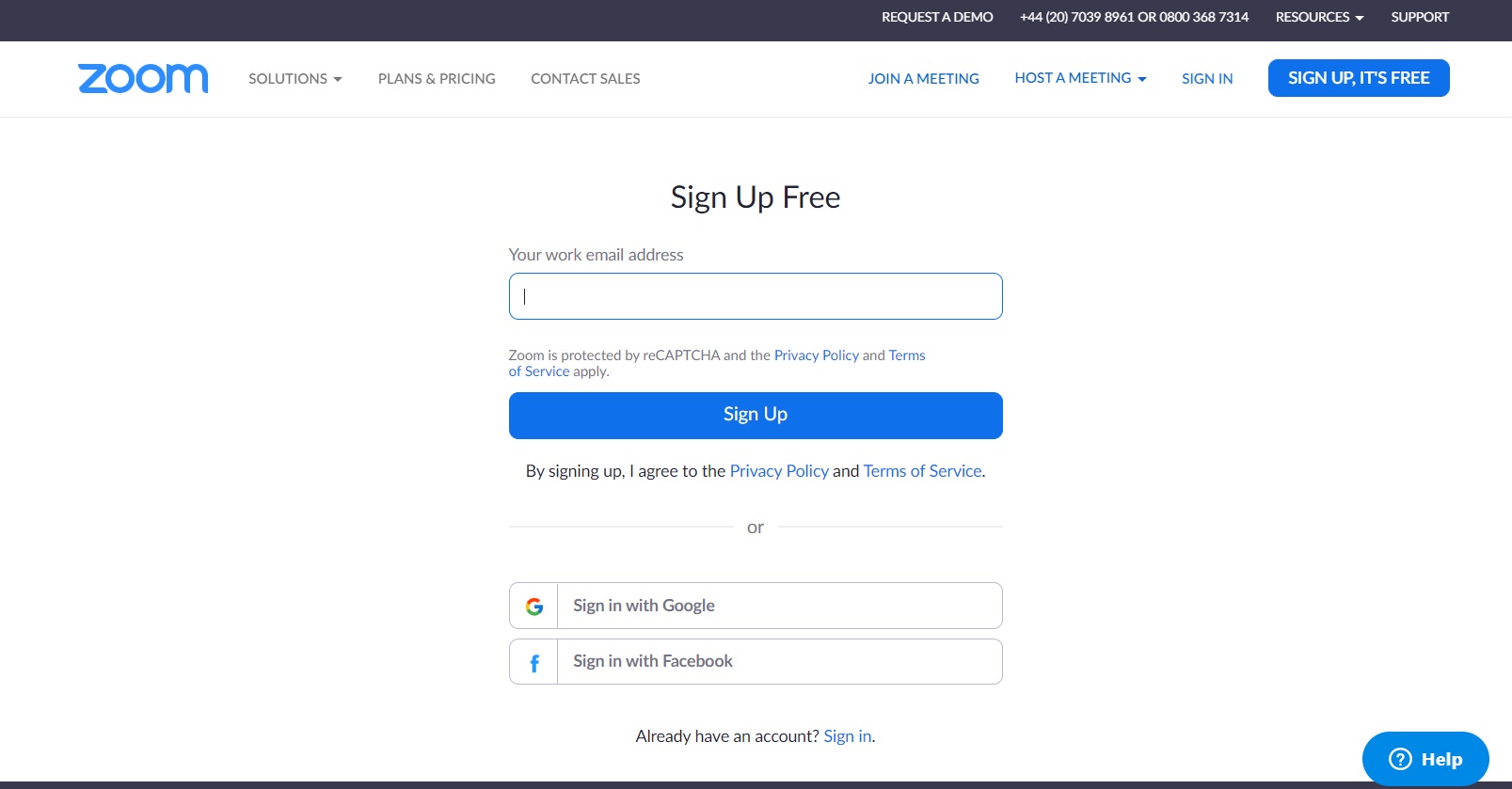
Click on Sign Up
Enter your details.
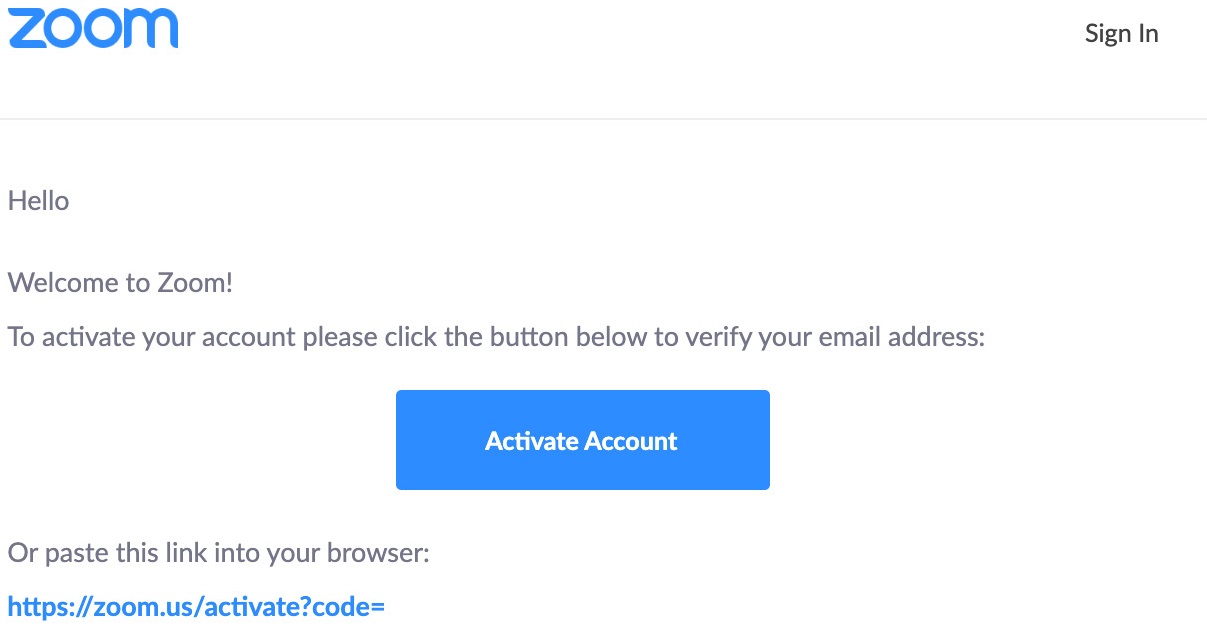
You’ll receive an email from Zoom to activate. Go to your email and click Activate Account.
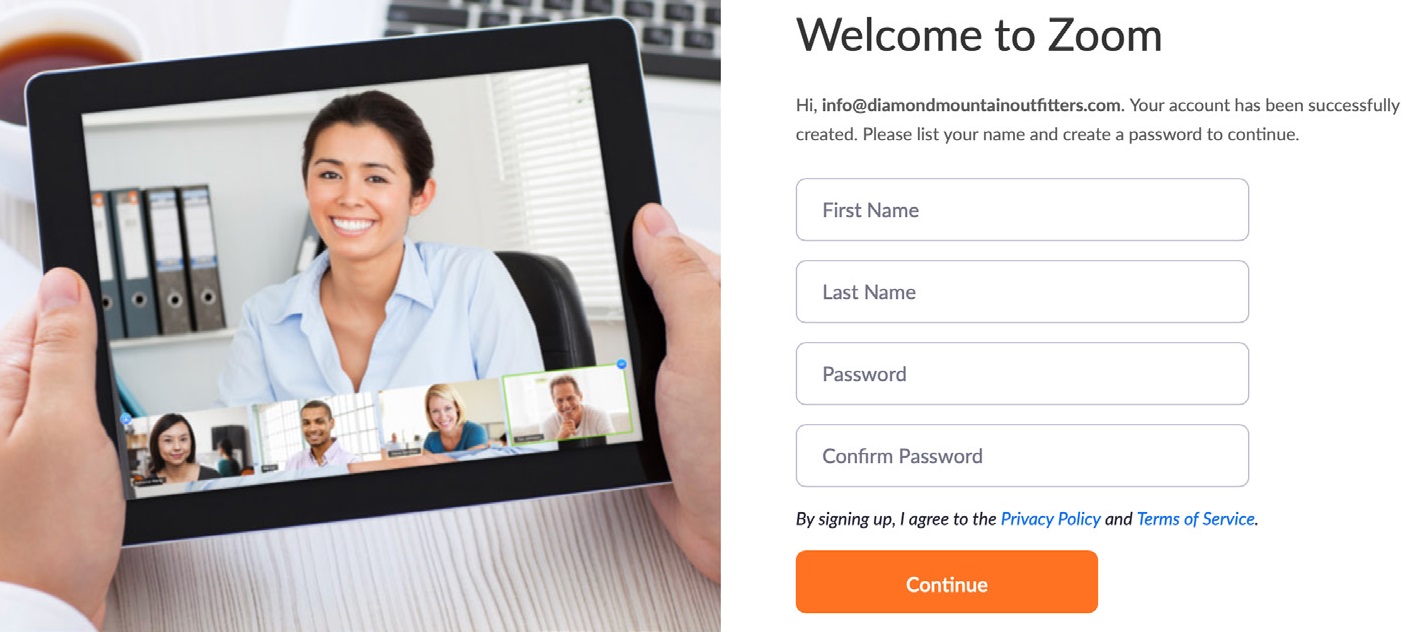
You’ll be redirected to fill in your first name, last name, and create a password.
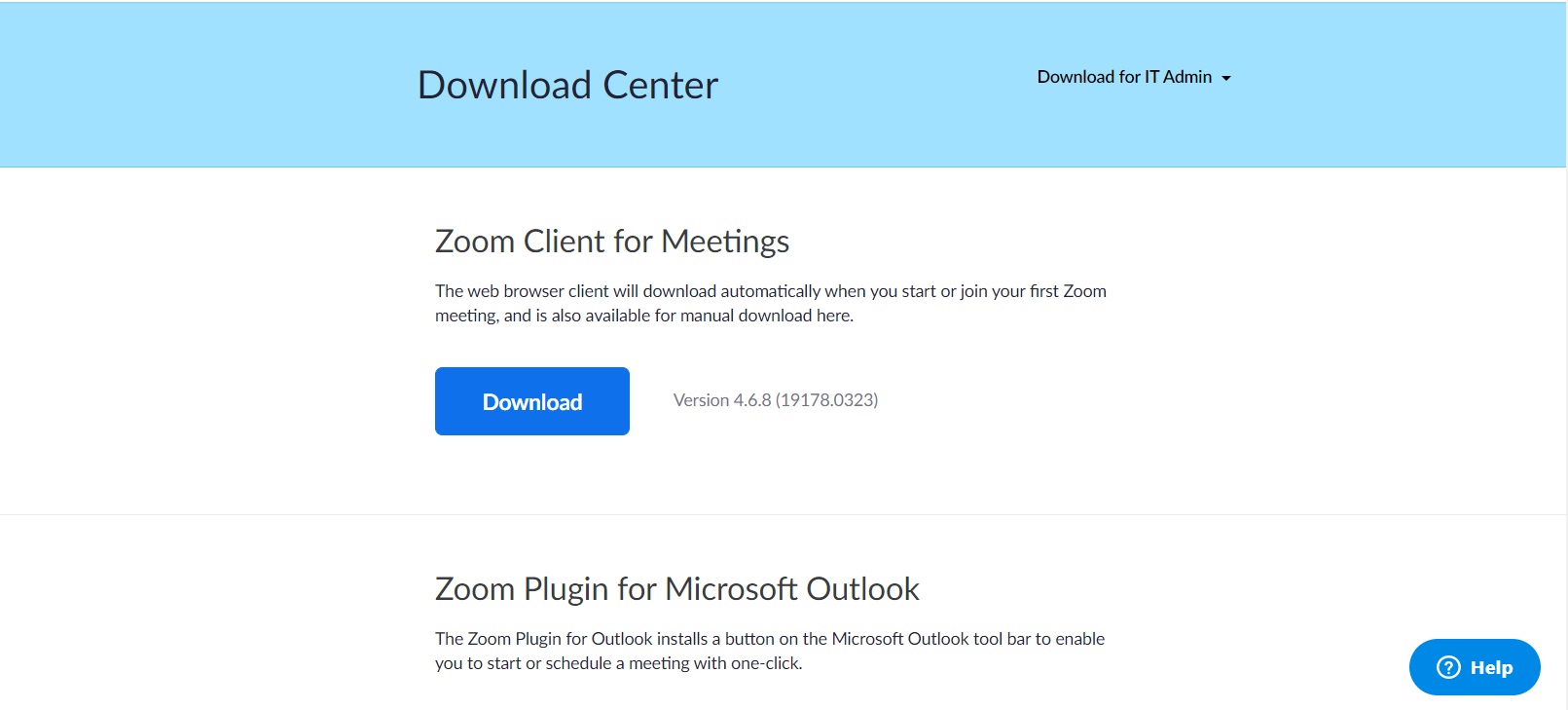
Navigate to the Download page – https://zoom.us/download.
On this page you will find all the apps for the platforms that Zoom can run on.
For most of us we will use:
- Zoom Client for Meetings (Windows or Mac)
- Zoom Extension for Browsers (Google Chrome or Mozilla Firefox)
- Zoom Mobile Apps for Android and iOS.
Download the app and install.
Open up the Zoom app and sign in.
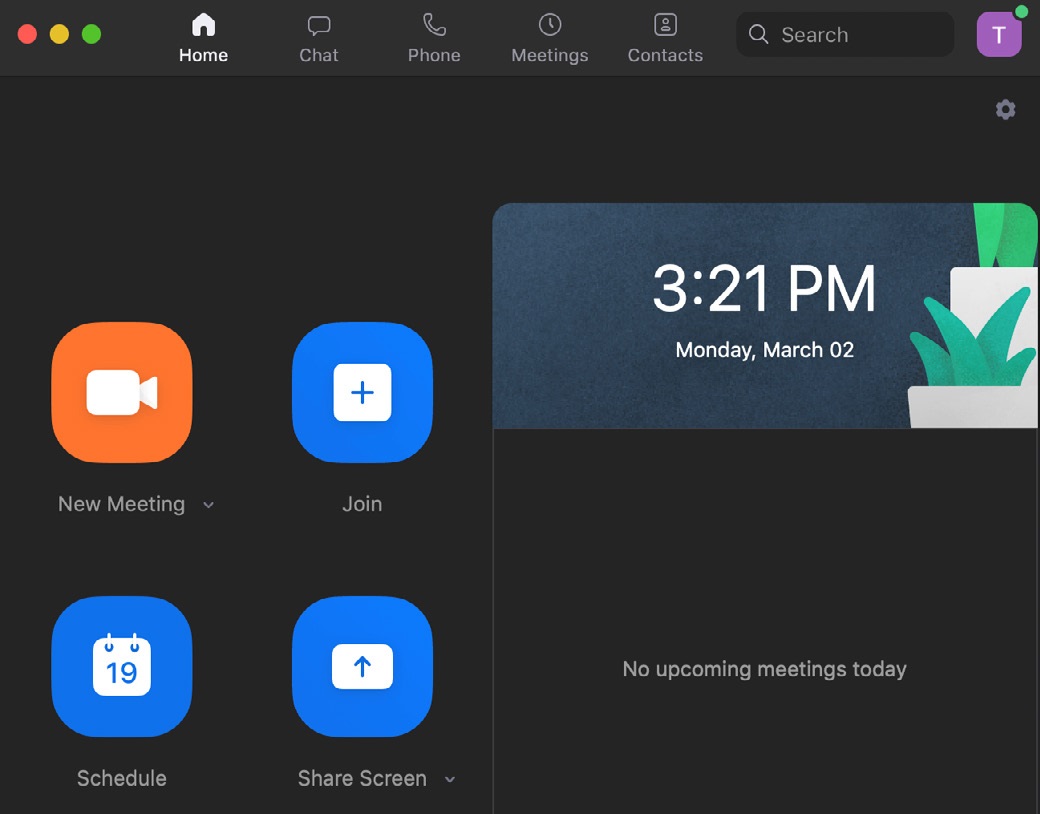
Click on the Home button
Then the Schedule button
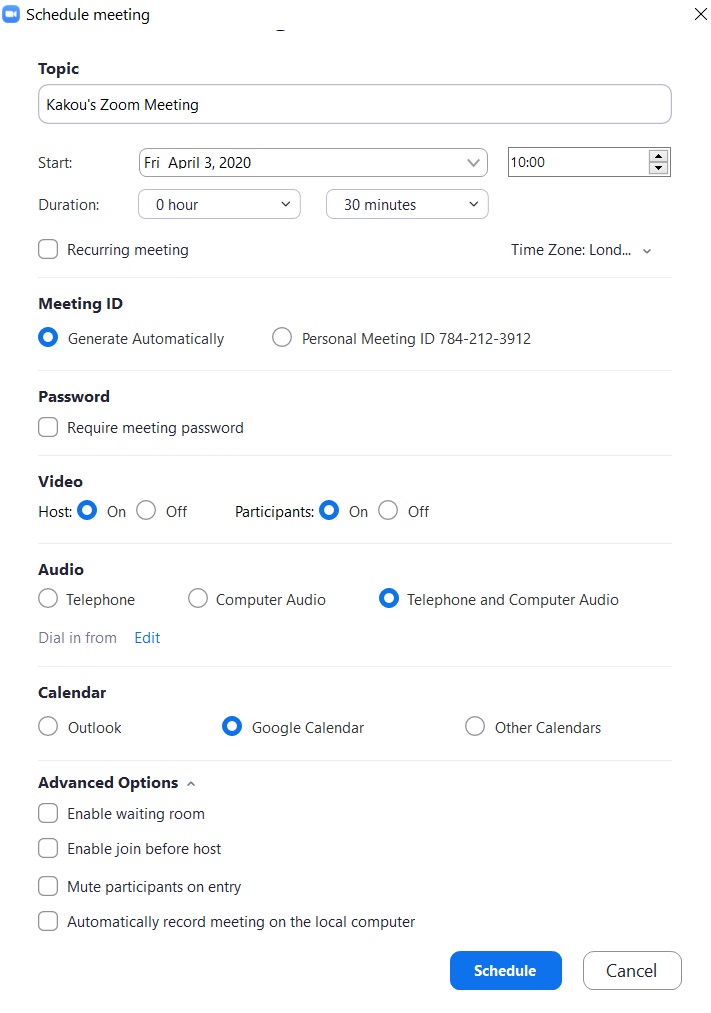
Enter the meeting information, and click on Schedule at the bottom of the form when completed.
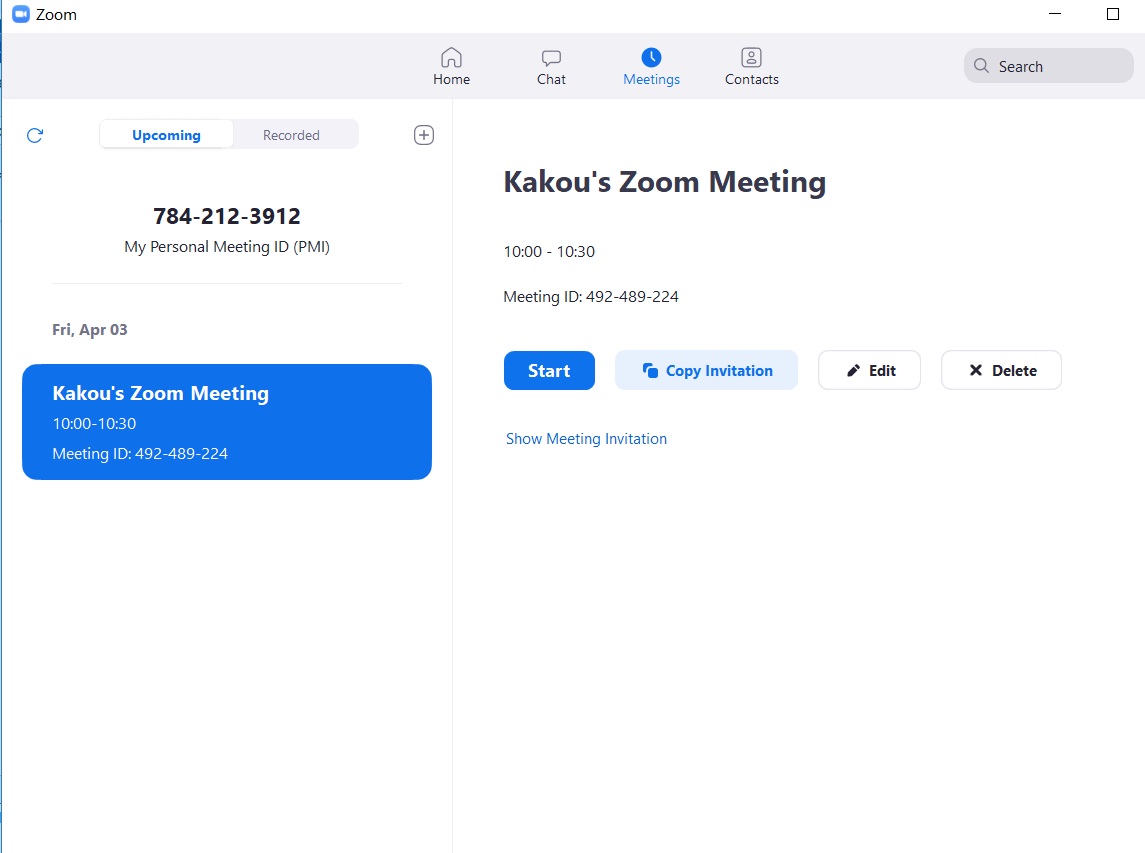
Click on the Meetings button at the top of the app.
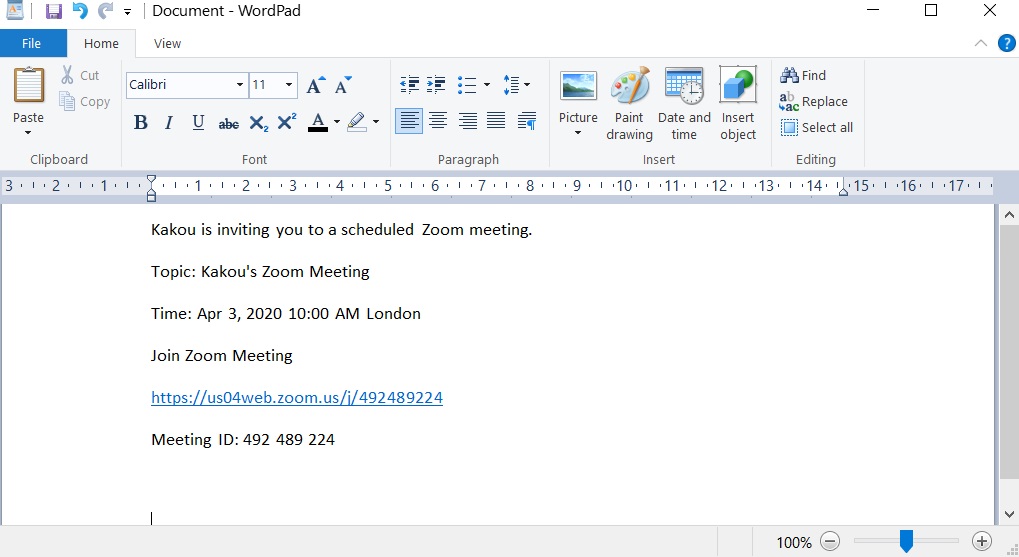
Click on Copy Invitation.
This will copy the meeting invitation link, which can be pasted into an email or text message to invite participants.
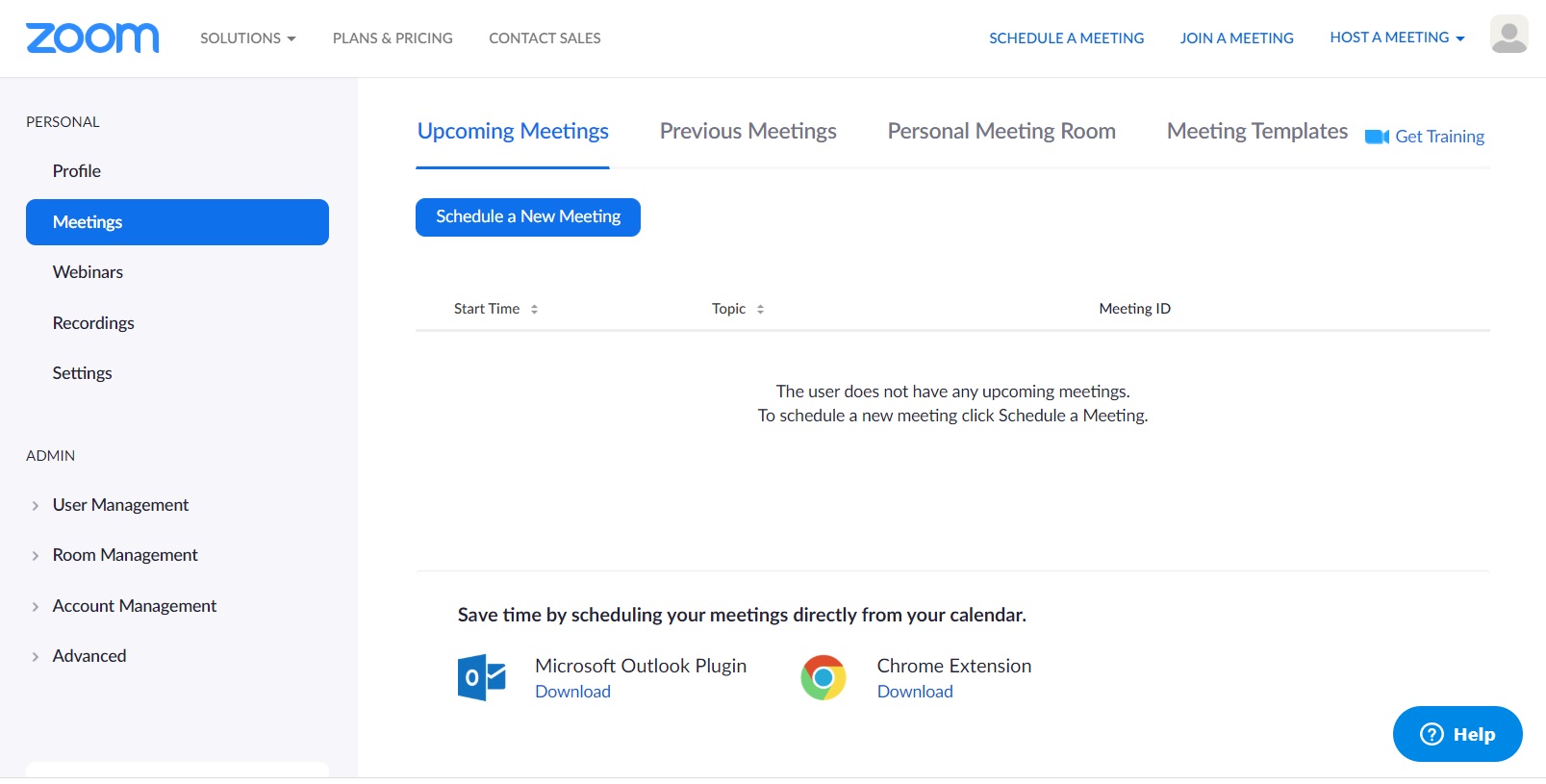
Meeting scheduling can also be completed online through your account.
To join a meeting, click on link sent over, or click on the Meetings tab to join a scheduled meeting.